


When the Meta Pixel is not tracking purchases on Shopify, your ad campaigns lose the most valuable signal for optimization: the purchase event. Without accurate purchase tracking, Meta’s algorithm cannot learn which users convert, which can significantly reduce ad performance.
Before changing code, identify whether events are missing from Events Manager or only absent from ad attribution. Those are different problems. An order can reach Meta without being attributed to a particular campaign.
This guide explains why the Meta purchase event may not fire on Shopify, how to diagnose the issue, and the exact steps to fix it so your campaigns optimize correctly.
Quick Answer
Start by checking the selected dataset, Shopify’s Facebook & Instagram connection, consent settings and a controlled test order. Then investigate duplicate installations and browser/server deduplication. Do not add another purchase script simply because Ads Manager shows fewer orders than Shopify.
Common causes include:
- Purchase event not firing on Shopify checkout
- Incorrect Meta Pixel installation
- Shopify checkout limitations
- Conversions API conflicts
- Pixel blocked by browser tracking restrictions
Use the checks below in order and record what changes. Fixing several settings at once makes it difficult to know which one solved the problem.

Why Shopify purchase events can be missing
Several technical factors can cause Shopify pixel issues where the purchase event fails to fire or fails to register in Meta Events Manager.
Cause #1: Purchase Event Not Firing on the Thank-You Page
The purchase event should trigger only after a successful checkout, typically on Shopify’s order confirmation page.
If the pixel is placed incorrectly or the event code is missing, Meta never receives the conversion signal.
Common reasons include:
- Pixel is installed in the wrong theme file
- Missing purchase event code
- Checkout script removed during theme updates
It leads to the Meta purchase event not optimizing, because the algorithm lacks final conversion data.
Cause #2: Incorrect Pixel Installation
Many Shopify stores install the pixel using:
- Theme code
- Third-party apps
- Google Tag Manager
- Shopify’s native Facebook & Instagram integration
If multiple installation methods are used simultaneously, it can cause:
- Duplicate events
- Missing events
- Data conflicts
Meta recommends using one primary installation method to avoid tracking inconsistencies.
Cause #3: Conversions API and Pixel Deduplication Issues
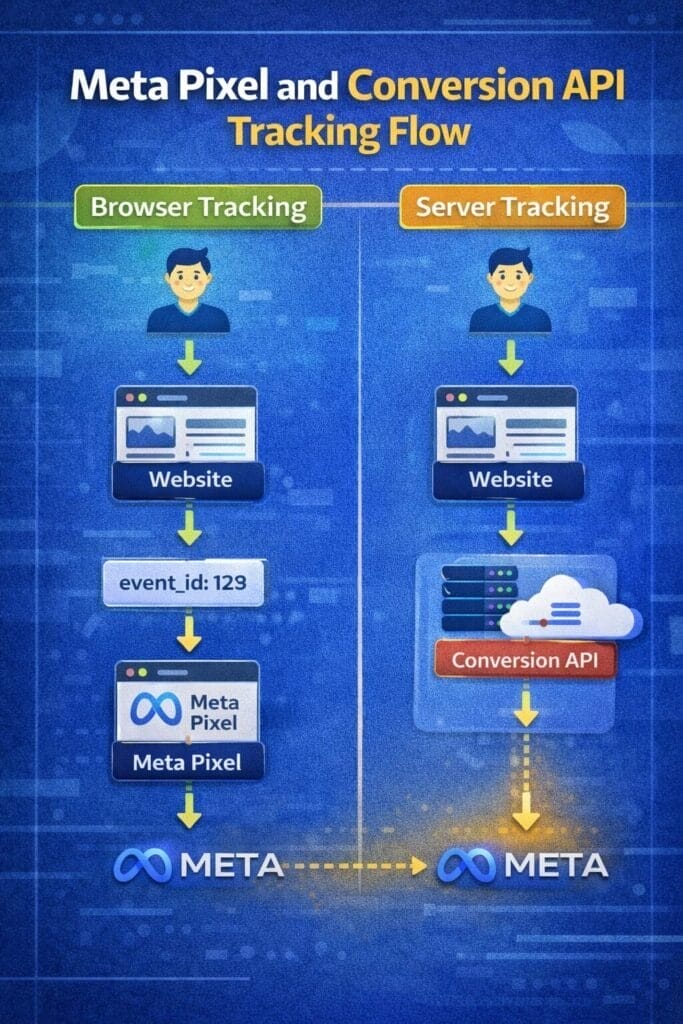
Many Shopify stores now use both Meta Pixel (browser tracking) and Conversions API (server tracking).
However, if event IDs do not match, Meta cannot deduplicate events properly.
It can result in:
- Missing purchase events
- Double purchase events
- Incorrect reporting
For browser and server copies of the same event, check consistent event names and matching identifiers. See Meta’s deduplication guidance. Event Match Quality and deduplication are different diagnostics; a high score does not prove that every purchase is counted correctly.
Cause #4: Browser Tracking Restrictions
Privacy updates have significantly affected pixel tracking.
Major restrictions include:
- Apple iOS App Tracking Transparency
- Safari Intelligent Tracking Prevention
- Ad blockers
Browser restrictions and consent choices can limit event collection. Server-side tracking still needs to respect applicable consent settings; Conversions API is not a workaround for a customer’s refusal to share data.
Cause #5: Shopify Checkout Limitations
Legacy checkout scripts and modern Shopify pixels use different implementation paths. Check your current checkout configuration and follow Shopify’s pixel migration guidance instead of assuming Shopify Plus permits arbitrary legacy scripts.
Because of this:
- Custom scripts may not run on checkout
- Certain tracking tools fail to fire events
- Pixels relying on checkout scripts may break
That is why Shopify recommends using its native Facebook & Instagram sales channel integration, which automatically handles the purchase event.
How to Check or Identify Meta Pixel Tracking Issues
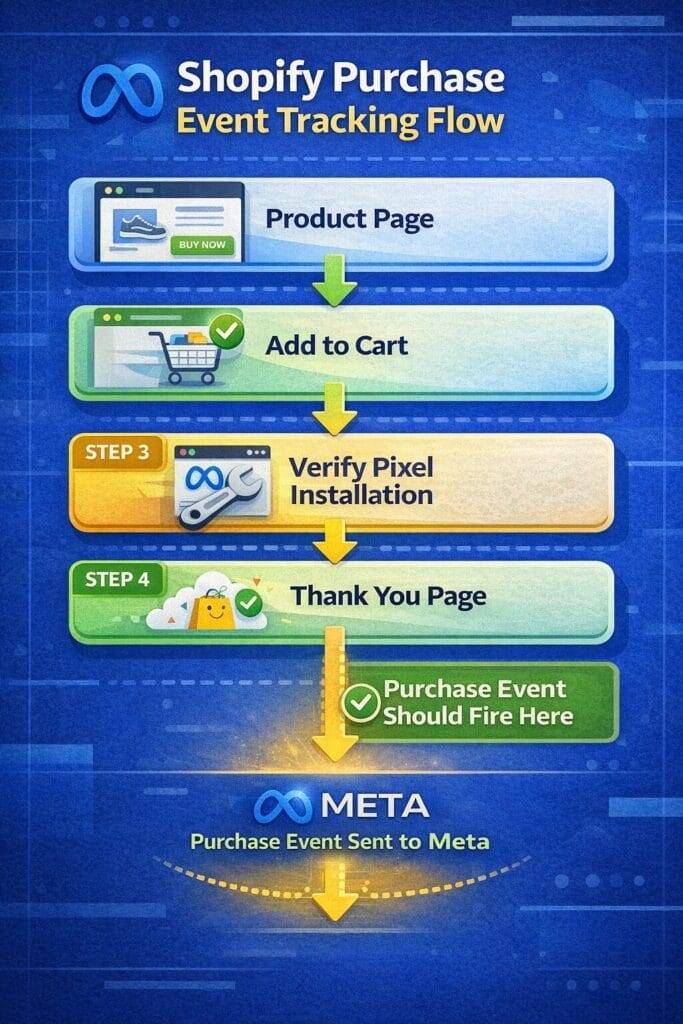
Use the following steps to verify whether the purchase event is firing correctly.
- Open Meta Events Manager
- Go to your Meta Business Manager → Events Manager.
- Select Your Pixel
- Choose the pixel connected to your Shopify store.
- Use Test Events Tool
- Enter your store URL and open it in a new tab.
- Place a Test Order
- Use a discount code or a Shopify test payment.
- Watch for the Purchase Event
- Check whether the purchase event appears in real time.
- Check Event Parameters
- Verify values such as:
- purchase value
- currency
- content IDs
- event ID
- Review Diagnostics Tab
- Meta will highlight issues like:
- Missing purchase event
- Event deduplication errors
- Low event match quality
How to Fix Meta Pixel Not Tracking Purchases on Shopify
Solution #1: Use Shopify’s Native Meta Integration
The most reliable method is Shopify’s built-in Facebook & Instagram sales channel.
Steps:
- Go to Shopify Admin
- Click Sales Channels
- Select Facebook & Instagram
- Connect your Meta Business account
- Open Settings → Share data settings and choose the appropriate customer data-sharing level.
Shopify automatically installs:
- Meta Pixel
- Conversions API
- Event deduplication
This setup dramatically reduces Shopify pixel issues.
Solution #2: Check the supported pixel implementation
For the Meta channel integration, confirm the connected dataset and settings before making a code change. If a custom pixel is necessary, use Shopify’s customer-events system and the provider’s instructions. Do not paste a static USD purchase example into a live checkout: the value, currency and order identity must reflect the actual order.
A checkout completion event and a settled payment are not always the same business outcome. For cash-on-delivery orders, reconcile submitted, confirmed and delivered orders in your reporting. A cheerful dashboard cannot confirm a parcel.
Solution #3: Check Event Deduplication
When using Pixel + Conversions API, the event ID must match.
Example structure:
Browser event:
matching order-specific event identifier
Server event:
matching order-specific event identifier
If the IDs differ, Meta counts them as separate events.
Correct deduplication ensures:
- Accurate reporting
- Proper conversion tracking
- Better campaign optimization

Solution #4: Test Events with Meta Pixel Helper
Use the Meta Pixel Helper Chrome Extension.
Steps:
- Install the extension
- Visit your Shopify store
- Complete a test purchase
- Check whether the purchase event fires
Look for:
- Green success indicator
- Correct event parameters
- No error messages
Solution #5: Implement Conversions API
If you rely only on browser tracking, some purchases may never be recorded due to privacy restrictions.
Conversions API sends data directly from the server to Meta.
Benefits include:
- Higher event match quality
- More reliable purchase tracking
- Better ad optimization
Meta reports that advertisers using Conversions API alongside Pixel see improved attribution accuracy compared to Pixel-only setups.
Best Practices for Shopify Pixel Tracking
1. Use One Pixel Installation Method
Avoid mixing multiple tracking methods.
Use either:
- Shopify native integration
- Google Tag Manager
- Manual pixel installation
Never combine all three.
2. Validate data sharing and consent
Choose a data-sharing level that matches your consent and privacy setup. Validate what the integration sends rather than automatically selecting the highest level.
This activates:
- Conversions API
- Advanced matching
- Event deduplication
3. Monitor Event Match Quality
Meta Events Manager provides Event Match Quality scores.
Event Match Quality describes the usefulness of customer information for matching. Inspect purchase counts, values and deduplication separately before judging tracking health.
- Better attribution
- Better campaign optimization
4. Regularly Test Events
Test your purchase event every time you:
- Update your theme
- Install new apps
- Change checkout settings
Theme updates sometimes remove scripts.
5. Track Key Conversion Parameters
Ensure your purchase event includes:
- value
- currency
- content_ids
- content_type
Missing parameters reduce optimization quality.
Common Mistakes with Shopify Pixel Tracking
1. Installing Pixel Twice
Duplicate installation causes:
- Double purchase events
- Incorrect ROAS reporting
2. Using Outdated Pixel Code
Older pixel implementations may not support modern privacy changes.
Always use Meta’s latest tracking setup.
3. Ignoring Conversions API
Relying only on browser tracking reduces accuracy due to privacy restrictions.
4. Not Testing After Theme Updates
Theme changes often break tracking scripts.
Always retest the purchase event afterwards.
5. Optimizing Ads Without Purchase Data
If the purchase event isn’t firing, Meta will optimize campaigns incorrectly.
It leads to:
- High cost per purchase
- Poor targeting performance
Helpful Tools for Shopify Pixel Tracking
Meta Events Manager
The primary dashboard to monitor:
- Pixel events
- Purchase tracking
- Event match quality
Meta Pixel Helper
A Chrome extension that detects pixel events firing on your site.
Useful for debugging purchase event not firing issues.
Shopify Facebook & Instagram App
Provides the most reliable integration between Shopify and Meta.
It automatically handles:
- Pixel installation
- Conversions API
- Event deduplication
Google Tag Manager
Useful for advanced tracking setups where you want full control over events and triggers.
However, it requires careful configuration to avoid conflicts.
Frequently Asked Questions
Why is my Meta Pixel not tracking purchases on Shopify?
This usually happens when the purchase event is not firing on the order confirmation page, the pixel is incorrectly installed, or there are conflicts between Pixel and Conversions API tracking.
Why is my purchase event not optimizing in Meta ads?
Meta needs consistent purchase data to optimize campaigns. If purchase events are missing or inconsistent, the algorithm cannot learn which users are most likely to convert.
Does Shopify automatically track purchase events?
Yes. When using Shopify’s Facebook & Instagram sales channel integration, Shopify automatically sends purchase events to Meta using both the Pixel and Conversions API.
How long does it take for purchase events to appear in Meta Events Manager?
Use Test Events for debugging and allow for processing delays in other reports. Check the selected dataset, date range and time zone before treating a missing report entry as a failed event.
Can ad blockers stop Meta Pixel tracking?
Yes. Browser tools and privacy settings can prevent browser events. Server events provide another collection route where permitted, but they do not guarantee complete tracking or bypass consent requirements.
What to do next
When the Meta Pixel is not tracking purchases on Shopify, your campaigns lose the most important signal needed for conversion optimization. The problem usually stems from missing purchase events, incorrect pixel installation, or Conversions API misconfigurations.
Use the supported integration, validate consent and data-sharing settings, then verify a test order and duplicate-event behavior. Retest after integration or checkout changes.
Once purchase tracking works correctly, Meta’s algorithm can optimize your campaigns effectively, helping improve conversion rates and maximize return on ad spend.
Separate missing events from attribution differences
| Symptom | First check |
|---|---|
| No test purchase reaches Events Manager | Dataset, integration connection, consent and event delivery |
| Events arrive but Ads Manager reports fewer orders | Attribution window, campaign interaction, date range and time zone |
| More events than orders | Duplicate installations and browser/server deduplication |
| Values differ | Currency, discounts, shipping, refunds and event parameters |
Keep a test log with the order reference, time, consent state, expected value and observed events. Do not paste customer information into public support threads.
For the wider store audit, use our ecommerce development checklist. If order volume is healthy but paid acquisition is difficult to evaluate, review your acquisition economics alongside tracking.
Need help identifying the tracking gap? Explore our Meta Ads service and share your store URL and the symptom you see, or contact us for a free 10-minute audit.